Cache Fighters Part 1 – Caching behaviour of AngularJS Apps

Every website, which also means every AngularJS app, needs to deal with different web caches.  This can be different proxy servers or even the browser cache as a very extensive cache.

Caching, on the one hand, can be very important because it helps to run any application as fast as possible, but on the other hand it can cause different problems when e.g. updating an published app. That’s what I had to deal with, when I prepared the user interface update of the Azure Cost Monitor – an AngularJS app for cloud cost management.

So this article describes how an AngularJS app behaves under the influence of different caches and gives an outlook to different strategies how to deal with potential problems.

An AngularJS app is technically a normal website which uses a lot of AJAX calls. This means that the app contains following elements:

  • index.html (the main entry point)
  • Views/Partials
  • Javascripts
  • Stylesheets
  • Media-Assets

There are different caching headers as described here. As long as the author of an app doesn’t intervene, all files are cached, which means that it’s hardly predictable when the browser ever tries to load the different assets from the server again.

Last-Modified is a “weak” caching header in that the browser applies a heuristic to determine whether to fetch the item from cache or not. (The heuristics are different among different browsers.)

This caching behaviour is good because the application should of course be of good performance. Loading big files from the cache is certainly faster then downloading them from a remote server – but when the application gets updated different caching problems might occur and for these problems some special handling is required.

Many people around are using Yeoman as a scaffolding application. The awesome AngularJS generator in Yeoman is generating a Gruntfile which compiles the AngularJS application. Folks coming from C/C++ could wonder what compiling means in this context. Here it just means preparing the different assets to be hosted on a production server. Normally this includes dealing with a couple of caching issues. Yeoman uglifies and minifies the javascripts, stylesheets, images and html files. During this process all javascripts, stylesheets and images get a hash-based new unique name. This is the first trick to prevent caching by a web cache like the browser. Keep in mind: Cached ressources are adressed by absolute URLs.

So back to the list above, the caching behaviour of the following three elements are solved:

  • Javascripts
  • Stylesheets
  • Media-Assets

Pretty cool 😉 but how to handle the rest?

The index.html should never be cached in an AngularJS application because this file contains all references to stylesheets and javascripts. Would a web cache, like the browser, cache this file, it would become very difficult to update a published app. In Azure Websites e.g., the preconfigured IIS takes care of this via correct Cache Headers. This ensures that the AngularJS application can be updated at any time.

Last but not least, on the list above the Views/Partials in AngularJS are left. These are HTML files, which are loaded via Ajax calls when they are needed. The next part of this article series will describe how to handle them by using caching as much as possible but preventing it in different cases. So stay tuned…

Enable AngularJS HTML5 Mode in Azure Websites

A brand new web application written in Javascript, e.g. AngularJS is often using the hashbang to build URIs which can be processed from the SPA router. These URIs can not be indexed by the most search engine crawlers. Also visitors have problems remembering specific resources.

This problem is addressed by the HTML5Mode of AngularJS or to be more technical by the History-API of the browser. With the HTML5Mode the Angular-App is able to change the browsers URI without performing a full page reload. The following URI

https://example.com/#/contract

becomes

https://example.com/contract

This article describes how to enable the HTML5Mode in an Angular application, including the customization of a development server: http://ericduran.io/2013/05/31/angular-html5Mode-with-yeoman/

Great, but when someone visits the app directly with that URI, the server needs to redirect the request to the index.html page of the application. This fact requires help from the server side normally realized with URL rewriting modules. Microsoft has everything on board to define the needed rules in a web.config as described in this article: http://coderwall.com/p/mycbiq/deep-linking-angularjs-on-windows-azure-iis

Hint: The same method can be used to enforce https when someone is visiting via http, just follow this link: http://stackoverflow.com/questions/9823010/how-to-force-https-using-a-web-config-file

This little changes should help to give your AngualarJS App more visibility in the web.

Deploy AngularJS-Apps to Azure WebSites with Codeship

The Azure Cost Monitor is a SaaS application which is extended and improved frequently. Updates take place several times a week without interrupting end users. This agile approach of software development requires continuous integration and a structured deployment process to keep quality and development on a high level. Written in javascript – nodejs for the backend and angularjs for the frontend – the application is deployed to Azure WebSites, the fully managed web hosting solution of Microsoft.

Azure supports deployment from GitHub which works very well for nodejs applications, but angularjs applications need to be compiled to minify the code and rename the images, what prevents caching issues in the browser. The guys from Codeship are offering one of the best cloud platforms to enable continuous deployment for Azure WebSites and many other services.

This tutorial describes a continuous deployment process for an angularjs application to Azure WebSites, based on Codeship. The source code is hosted in a public GitHub repository and the angularjs app is scaffolded with yeoman.

Step 1: Create your AngularJS application

First of all a new Angular application needs to be created with the following yeoman command:

yo angular

This example uses Sass with Compass and Bootstrap, so this options need to be selected in the creation wizard of yeoman. After creating the application it could make sense to test if everything is generated correctly, by starting the development server with this command:

grunt serve

grunt-wiredep is a grunt task which is responsible for updating all the HTML files and minify the JS/CSS files. This task has an issue in version 1.7.0 so it needs to be updated to version 1.9.0 via package.json. The following line needs to be replaced in the package.json:

“grunt-wiredep”: “^1.7.0”,

to

“grunt-wiredep”: “^1.9.0”,

Last but not least the updated package needs to be installed with

npm install

Bower is the component which is used to install all needed web components. The Codeship sandbox has no bower installed out of the box, so the dependency needs to be added with the following command to the package.json as well:

npm install bower –save-dev

Besides that, the commandline interface for grunt needs to be part of the package.json, so that it becomes installed into the Codeship sandbox:

npm install grunt-cli –save-dev

Step 2: Beam Compass & Sass into the Codship sandbox

YeoMan is using Sass and Compass for modern CSS compilation, so it’s required in the Codeship sandbox as well. All used tools are ruby gems so a simple Gemfile with the following content defines the dependencies:

source “https://rubygems.org”

gem ‘sass’, “3.2.9”
gem ‘sass-globbing’, “>= 1.1.0”
gem ‘compass’, “0.12.2”
gem ‘breakpoint’, “2.0.5”
gem ‘singularitygs’, “< 2.0.0”
gem ‘chunky_png’, “1.3.3”

Alle components need to be installed with the command

bundle install

which generates the Gemfile.lock.

Step 3: Activate the CI build in Codeship

All changes described in the steps above should be commited in a GitHub repository. After that everything is prepared to create a new project in Codeship which is connected to the GitHub repository:

Screen Shot 2014-12-20 at 23.11.09

The following setup commands of the Codeship projects should be entered to install all dependencies and kick off the angular build:

rvm use 1.9.3
bundle install
npm install
bower install
grunt build

All the build output is stored in the dist directory. After all preparation, a simple push to the projects GitHub repository lets Codeship start building your application instantly. The first build takes a little bit longer because Codeship prepares the dependency caches. The second one should be done in about 1:30 minutes.

Step 4: Prepare your Azure WebSite

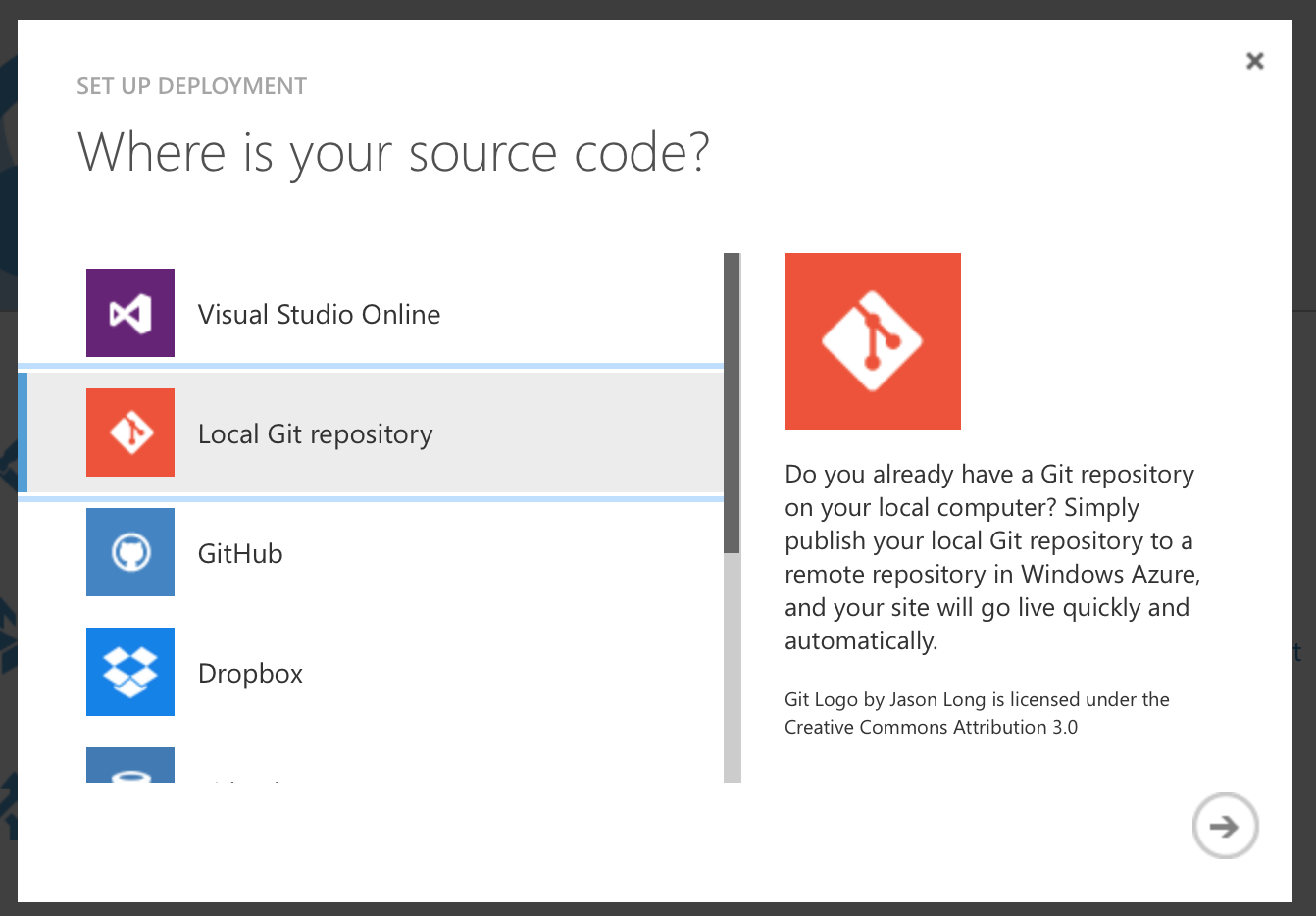
A new Azure Website needs to be created in the Azure Management Portal. Every Azure WebSite supports different ways to publish content, besides traditional FTP Azure WebSites supports deployment from source control. In the specific case of this tutorial the deployment from source control feature should be set to the option “Local Git Repository”:

Screen Shot 2014-12-20 at 23.13.10

Screen Shot 2014-12-20 at 23.14.12

This means Azure hosts a git repository and everything that is committed into this repository will become active in the Azure Website. After that, the next goal is to let Codeship commit all changes into this repository after every successful build.

Step 5: Bring deployment online

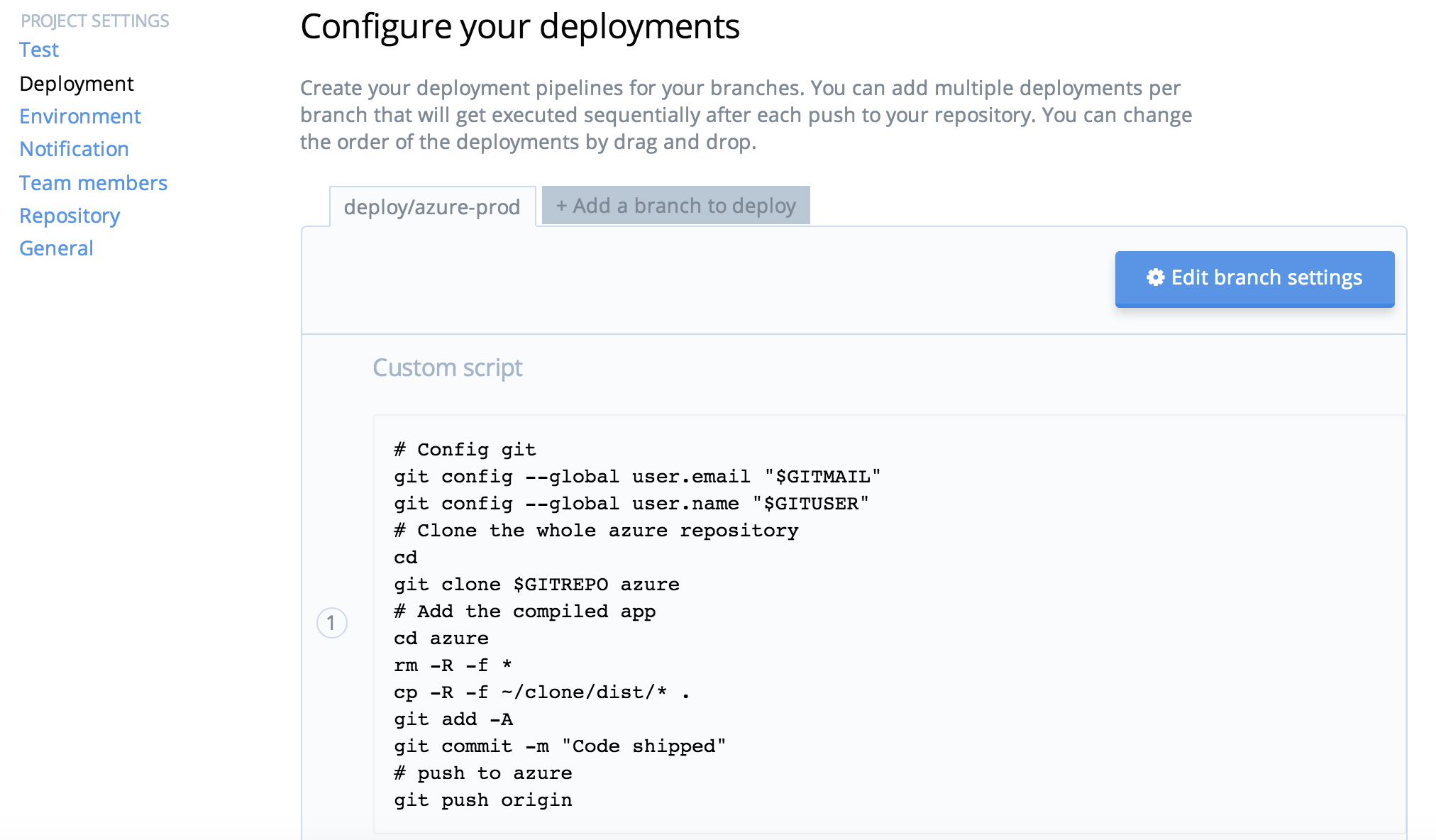
Codeship allows to add a deployment script under the project settings for specific branches. In this sample every committed change from the master branch is deployed. In a production environment the system should only be triggered from a specific deployment branch, e.g. deploy/azure.

The following script deploys the compiled angular app to the Azure Website:

# Config git
git config –global user.email “$GITMAIL”
git config –global user.name “$GITUSER”
# Clone the whole azure repository
cd
git clone $GITREPO azure
# Add the compiled app
cd azure
rm -R -f *
cp -R -f ~/clone/dist/* .
git add -A
git commit -m “Code shipped”
# push to azure
git push origin

Last but not least, all used variables need to be stored as environmental settings in Codeship. This prevents that Codeship prints out sensitive data to the logs and decouples configuration settings from deployment script:

Screen Shot 2014-12-20 at 23.15.09

The GITREPO variable contains the https based git URL from the local git repository of the Azure WebSite. It includes username and password in the URL, e.g.

https://{{user}}:{{password}}@{{website}}.scm.azurewebsites.net:443/{{website}}.git

The deployment credentials can be found in the Azure portal for the Azure website.

Finally a simple push into the Git repository of the project triggers a build via Codeship and a deployment into the right Azure WebSite. Users do not loose access to the SaaS application except for a couple seconds after redeploying when the IIS load the new application.

This fully automated process supports every agile software development process and helps you to focus on making features and not updating servers.

Happy Deploying 🙂